
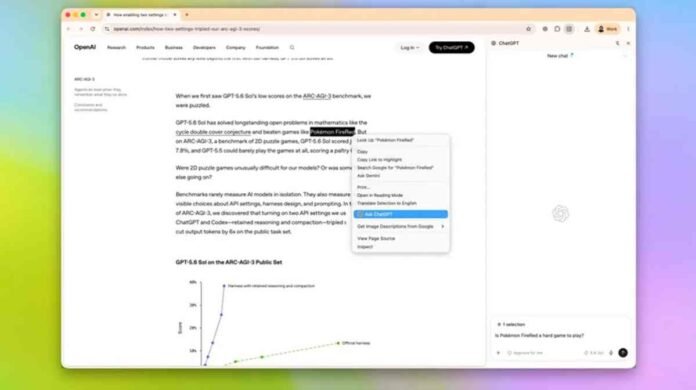
- ChatGPT’s Chrome Side Chat can work with the webpage you are currently viewing.
- It can summarize YouTube videos and help locate specific topics or sections.
- It can compare information across multiple open browser tabs and use that information to make recommendations.
- Highlighted text can be sent directly to ChatGPT for explanations without copying and pasting.
Most of us have a familiar browser problem. You open one tab to check the weather, another to find somewhere to eat, a few more for research, and before long you have a collection of tabs that has completely escaped your control.
The latest improvements to ChatGPT’s Chrome extension could make that mess considerably more useful.
Rather than forcing you to copy links, screenshots or chunks of text into a separate ChatGPT conversation, the extension can now work with the information already sitting in your browser. Its Side Chat feature puts ChatGPT alongside the page you are viewing, allowing you to ask questions about the content without leaving the site.
That sounds like a small convenience, but it changes how the browser can be used. ChatGPT can now help with highlighted text, understand YouTube videos and, more interestingly, connect information across multiple open tabs.
It is the difference between asking an AI about one webpage and asking it to make sense of what you are doing across the browser.
YouTube videos become easier to navigate
Long YouTube videos are one of the clearest examples of where this could save time.
Instead of watching a 30 minute or even two hour video just to find one section, you can open Side Chat and ask ChatGPT to summarize the video, identify its main arguments and point you towards specific sections.
For example, a video covering the history of Spider Man across comics, movies and games could be turned into a short list of key points. You could also ask ChatGPT to explain the biggest differences between the comic and movie versions, then find the timestamps where the discussion moves to the PlayStation games.
That makes the AI useful before you actually watch the video.
You can quickly work out whether the entire thing deserves your time or whether there are only a couple of sections worth watching. For people who regularly save videos for later but rarely have enough time to sit through them, that could become one of the extension’s most practical features.
It is also a more natural way to interact with video content. Instead of searching through comments or dragging the timeline backwards and forwards, you can simply ask what you want to find.
Multiple tabs can finally work together
The more interesting feature is the ability to use information from several open tabs at once.
Imagine having a weather forecast open alongside a local museum, a restaurant and a hiking trail. Normally, you would have to jump between each tab, compare opening hours, check the forecast and work out the best order for your plans.
With Side Chat, ChatGPT can use the information across those tabs to produce a single recommendation.
In one example, the AI suggested starting with the hiking trail while the weather was more comfortable, followed by lunch at the nearby pizza restaurant and an afternoon visit to the museum. It also considered the possibility of rain later in the day and used the museum as an indoor backup.
That is more useful than simply asking ChatGPT to summarize four websites individually.
The real benefit is the connection between them. The browser already contains the information you need, and ChatGPT acts as the layer that brings it together.
This could be particularly handy when researching travel plans, comparing products, planning a day out or collecting information for a larger purchase. Instead of manually keeping track of what every tab says, you can ask ChatGPT to look at the bigger picture.
Highlight text and ask instead of copying
The simplest feature may also be the one people use most often.
When you come across a confusing paragraph, you can highlight it and ask ChatGPT to explain it. The selected text is passed directly into Side Chat, so there is no need to copy it, open another tab and paste it into a new conversation.
That is especially useful for technical articles, academic material and complicated explanations.
You could highlight a dense section about astronomy and ask for a beginner friendly explanation. You could select a complicated recipe and ask what a particular technique means. You could also highlight a paragraph from a financial or technology article and ask ChatGPT to explain the terminology in plain English.
The important part is that the context stays attached to the page.
It removes one of the small but persistent annoyances of using AI while browsing. You do not have to stop what you are reading just to give the chatbot enough information to understand your question.
It feels closer to an assistant than another chatbot
The biggest change here is not any single feature. It is the way these features work together.
ChatGPT has traditionally been something you visit when you want an answer. The Chrome extension makes it feel more like something that sits alongside your browsing and helps you make sense of what you are already looking at.
That distinction matters.
A browser assistant that understands the page in front of you does not need you to explain what you are reading constantly. An assistant that can connect several open tabs can help with tasks that would otherwise involve a lot of manual comparison. And an assistant that can explain highlighted passages makes difficult content easier to understand without breaking your reading flow.
It is not going to organize every chaotic browser session magically, and there will still be situations where the information it produces needs to be checked. But the direction is interesting.
The browser is already where much of our research happens. Giving an AI access to that context makes it considerably more useful than simply opening another chatbot tab.
For anyone who routinely ends up with dozens of open tabs, the ability to turn that clutter into something actionable could be one of the more practical uses of AI in everyday browsing.
Follow TechBSB For More Updates