
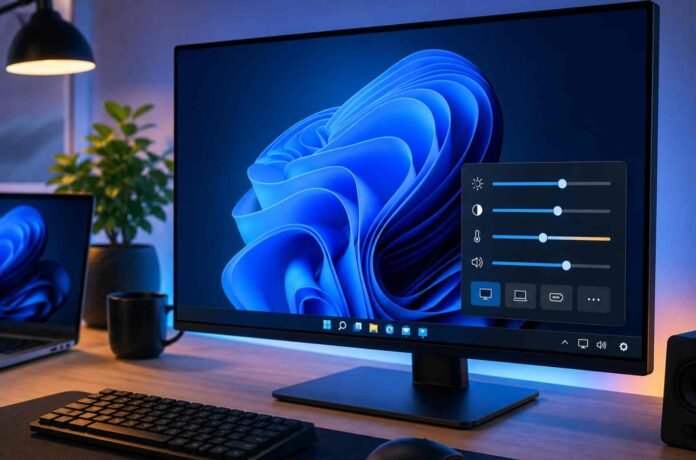
- Power Display lets users control monitor settings directly from the Windows 11 taskbar.
- The feature feels polished enough to belong inside Windows 11 by default.
- PowerToys continues to act as Microsoft’s hidden innovation platform.
- Microsoft has a chance to improve Windows 11 through practical features instead of cosmetic.
Microsoft keeps finding clever ways to improve Windows through PowerToys, and the latest update once again raises an obvious question: why are some of these features still missing from Windows 11 itself?
The newest addition, called Power Display, feels less like an experimental utility and more like something that should have been part of the operating system years ago. It gives users direct control over monitor settings straight from the Windows taskbar, eliminating the need to wrestle with awkward monitor menus and clunky physical buttons.
For anyone using an external display, especially a multi monitor setup, the feature immediately makes sense. And after spending time with it, it becomes hard to argue against the idea that Microsoft should stop treating certain PowerToys tools as optional extras and start integrating them into Windows 11 by default.
Power Display Solves an Everyday Windows Frustration
One of the biggest annoyances with desktop monitors has always been adjusting settings manually through built in display menus. Most monitors still rely on tiny joystick controls or hard to reach buttons that make even basic changes feel unnecessarily frustrating.
Power Display fixes that problem in a surprisingly elegant way.
Instead of diving through monitor menus, users can adjust brightness, contrast, color temperature, and even speaker volume directly from the system tray in Windows 11. The tool also supports changing input sources and creating custom monitor profiles that can be switched instantly.
That alone makes the feature useful, but Microsoft went a step further by integrating it with another PowerToys feature called Light Switch. This allows users to automatically apply different monitor profiles depending on whether Windows is in light mode or dark mode.
It is the kind of thoughtful functionality that quietly improves the daily desktop experience without demanding attention.
Most importantly, Power Display is not relying on software tricks or visual filters. It communicates directly with compatible monitors using DDC and CI support, meaning the adjustments happen at the hardware level exactly as if the settings were changed on the monitor itself.
That distinction matters because it delivers a cleaner and more accurate result than fake brightness overlays or dimming effects.
The Strange Reality of Modern Windows 11
What makes Power Display particularly interesting is how obvious the feature feels once you use it. This is not some niche tool designed only for enthusiasts or developers. It addresses a genuinely common problem that millions of Windows users deal with every day.
That is why many users are asking the same question: if Microsoft already built the feature, why is it hidden inside PowerToys instead of being included in Windows 11?
The answer probably comes down to Microsoft’s long standing balancing act between adding functionality and avoiding accusations of bloated software. Every time the company expands Windows with new tools, criticism follows about unnecessary features cluttering the operating system.
Still, Power Display hardly feels excessive.
The utility is lightweight, practical, and useful for both casual users and productivity focused setups. Features like this would strengthen Windows 11 far more effectively than many of the cosmetic changes Microsoft has prioritized over the last few years.
The same argument applies to another new PowerToys addition called Grab and Move. While simpler on the surface, it improves window management by allowing users to drag or resize windows from anywhere while holding the Alt key.
It is a small convenience feature, but those are often the upgrades that make an operating system feel polished.
PowerToys Has Become Microsoft’s Best Testing Ground
PowerToys increasingly feels like Microsoft’s unofficial innovation lab for Windows. Instead of overhauling Windows 11 directly, Microsoft experiments with practical ideas inside a separate utility suite where advanced users can test features without affecting the broader operating system.
That strategy has obvious benefits.
Microsoft can collect feedback, improve stability, and refine tools before considering deeper integration into Windows itself. It also gives users freedom to enable only the features they actually want.
But there is also a downside to that approach.
Many Windows users either do not know PowerToys exists or assume it is only meant for hardcore enthusiasts. As a result, genuinely useful features remain hidden from the wider audience that would benefit most from them.
That feels especially true with Power Display because monitor management is not a power user problem anymore. Multi monitor setups have become standard across workspaces, gaming desks, and home offices.
The demand for cleaner monitor controls already exists. Microsoft has simply tucked the solution away in a separate download.
Microsoft Has an Opportunity to Make Windows 11 Better
Windows 11 still struggles with an identity problem. Microsoft wants the operating system to feel modern and streamlined, yet many everyday interactions remain oddly outdated.
Power Display highlights that disconnect perfectly.
Users can control smart homes, wireless earbuds, and RGB lighting through software panels, yet adjusting monitor brightness on Windows desktops often still requires pressing physical buttons on the display itself.
That no longer makes sense in 2026.
If Microsoft genuinely wants to improve Windows 11 in meaningful ways, integrating selected PowerToys features directly into the operating system would be a smart move. Not every experimental utility belongs in the core experience, but tools like Power Display and Grab and Move already feel polished enough to deserve a permanent place.
And if Microsoft worries about clutter, the answer is simple: make them optional and disabled by default.
That would preserve Windows 11’s flexibility while finally bringing genuinely useful functionality to the people who need it most.
Follow TechBSB For More Updates