
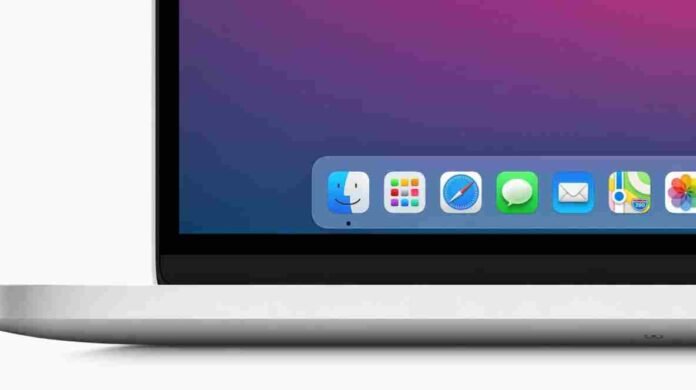
- The macOS Dock is a central hub for launching and managing apps
- It can store apps, files, and folders for quick access
- It offers notifications, app switching, and force quit options
- You can fully customize its layout, size, and behavior
If you’ve just moved from Windows to a Mac, one of the first things you’ll notice is the Dock. It sits quietly at the bottom of the screen, but it quickly becomes one of the most important parts of macOS. Think of it as Apple’s answer to the Windows taskbar, but with its own personality and a few clever tricks.
At its simplest, the Dock is your launchpad for apps. It holds shortcuts to your favorite tools so you can open them with a single click. When an app is running, a small dot appears beneath its icon, making it easy to switch between active programs without digging through windows.
Closing apps is just as straightforward. A right click on an icon gives you the option to quit, along with extra controls depending on the app.
By default, Apple includes its own apps in the Dock along with the Downloads folder and Trash. Unlike Windows, the Trash lives here permanently. But this setup is only a starting point. You are free to reshape the Dock however you like.
More Than Just App Shortcuts
The Dock is not limited to apps. The right side, separated by a subtle divider, can hold folders, files, and shortcuts. This is especially useful for things you open often, like documents or project folders. Instead of navigating through Finder every time, you can keep them within reach.
It also doubles as a lightweight notification center. Apps can display badges on their icons to alert you to updates or unread items. A mail app might show a number for unread messages, while messaging apps can signal new conversations. It is a simple system, but effective.
Another practical feature is handling frozen apps. If something stops responding, you can right click its Dock icon and force it to quit. This can save you from restarting your Mac or waiting endlessly.
Dock vs Windows Taskbar
For Windows users, the Dock will feel familiar, but not identical. Both sit at the bottom of the screen and offer quick access to apps. Both also allow you to pin your favorite tools for easy access.
The difference becomes clear when you look at how each system handles app discovery and search. Windows relies heavily on the Start menu and its built in search bar. macOS takes a different route. Instead of embedding search in the Dock, it uses Spotlight, which you can open instantly with a keyboard shortcut. It feels faster once you get used to it.
Another unique touch is Apple’s ecosystem integration. If you are using other Apple devices with the same account, the Dock can show apps you are currently using on your phone or tablet. Clicking them lets you continue your work seamlessly on your Mac.
There are also a few subtle productivity tricks. Dragging a file onto an app icon opens it in that app. Holding certain keys while clicking can reveal file locations or switch between apps in a more controlled way. These small touches add up over time.
Customizing the Dock Your Way
One of the best things about the Dock is how easy it is to personalize. Adding an app is as simple as dragging it into place. You can also keep an app in the Dock after opening it by selecting the appropriate option from its menu.
Rearranging icons is just a matter of dragging them around. Removing something is equally simple. Drag it out of the Dock and it disappears without uninstalling the app itself.
Beyond that, macOS offers several visual and behavioral tweaks. You can enable auto hide so the Dock disappears when not in use, giving you more screen space. Magnification enlarges icons as your cursor moves over them, making them easier to identify. You can also move the Dock to the left or right side of the screen if that suits your workflow better.
For deeper customization, head into System Settings. Here, you can adjust the Dock’s size, control animation effects, and decide how windows behave when minimized. You can even choose whether recently used apps appear automatically.
Once you spend a little time tailoring it, the Dock becomes less of a static toolbar and more of a personalized control center.
Why the Dock Matters
The Dock might seem simple at first glance, but it plays a central role in how macOS feels. It keeps your most important tools close, reduces clutter, and adds subtle conveniences that improve your daily workflow.
For Windows switchers, the learning curve is not steep. In fact, many users find the Dock more intuitive after a few days of use. With a bit of customization, it can become one of the most efficient parts of your Mac experience.
Follow TechBSB For More Updates