
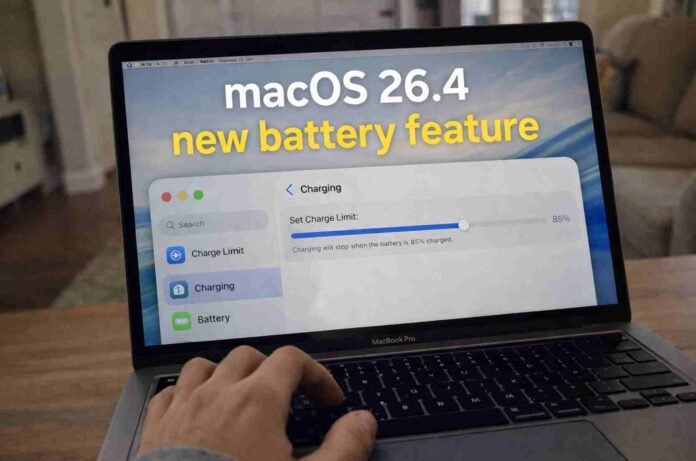
- macOS 26.4 adds a manual battery charge limit for MacBooks
- Users can set a cap between 80 percent and 100 percent
- Limiting charge can reduce long term battery wear
- The feature is currently in beta with a wider release expected in spring
If your MacBook never seems to hold a charge the way it used to, Apple may finally have a built in answer. With macOS 26.4, currently available in beta, Apple is introducing a long requested battery charge limit feature that gives you more control over how your Mac charges.
iPhone users have enjoyed this option for a while. Now it is coming to the Mac, and it could make a noticeable difference to long term battery health.
The new setting allows you to define exactly how far your MacBook charges before it stops. Instead of topping up to 100 percent every time it is plugged in, you can cap the charge anywhere between 80 percent and 100 percent in 5 percent steps. So if 85 percent feels like the sweet spot, you can set it there.
It is a simple change on the surface, but it reflects a deeper shift in how Apple is thinking about battery longevity.
Why stopping at 80 or 85 percent can help
Lithium ion batteries, the kind used in MacBooks, experience more stress when they are constantly held at full charge. Leaving a laptop plugged in at 100 percent for extended periods can gradually accelerate battery wear.
By limiting the maximum charge, you reduce that stress. Over time, this can slow battery degradation and help preserve overall capacity. In practical terms, that means your MacBook battery could retain its health for longer, especially if you tend to work at a desk with it plugged in most of the day.
Apple already uses optimized charging to learn your habits and delay charging past 80 percent until you need it. The new manual charge limit goes a step further. It puts the decision in your hands instead of relying entirely on software predictions.
There is one important detail to keep in mind. Even if you set a charge limit below 100 percent, macOS may occasionally charge the battery to full. Apple says this helps maintain accurate battery state of charge estimates. In other words, the system still needs a full charge from time to time to properly calibrate itself.
How to turn on the new charge limit in macOS 26.4
Once macOS 26.4 rolls out more widely, setting a charge limit is straightforward.
Open System Settings, head to Battery, and look for the Charging section. From there, you can access the new slider and choose your preferred limit in 5 percent increments between 80 and 100 percent.
Right now, the feature is part of the macOS 26.4 beta. Apple typically releases its point four updates in the spring, so a broader rollout is likely in the coming months.
Apple has also added support in the Shortcuts app. That means you can build automations around your charge limit.
For example, you might create a shortcut that raises the limit when a Work Focus is enabled or lowers it during a Home Focus when your MacBook stays on a desk charger all day. It is a small addition, but it opens up useful possibilities for power users who like tailoring their setup.
A built in alternative to third party apps
Until now, Mac users who wanted this level of control often turned to third party tools such as AlDente. Those apps filled a genuine gap, especially for people keen to squeeze every bit of longevity from their batteries.
By integrating the feature directly into macOS, Apple makes it more accessible and likely more reliable. There is no need for background utilities or extra permissions. Everything works natively within the system, just as it does on the iPhone.
This move also brings feature parity across Apple devices. Whether you are using a MacBook or an iPhone, you now have similar tools to manage battery health.
If your MacBook battery seems to be aging faster than you would like, the new charge limit is well worth exploring. It will not magically restore lost capacity, but it could help prevent further wear and extend the useful life of your device.
Follow TechBSB For More Updates