
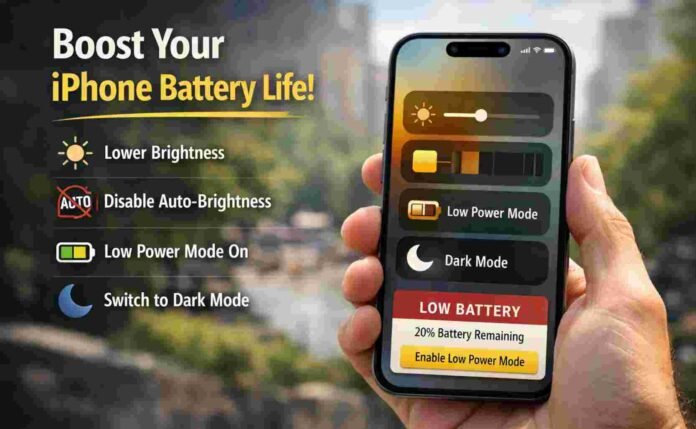
- Lower brightness to reduce the biggest source of battery drain.
- Disable Auto Brightness so your screen does not spike outdoors.
- Use Low Power Mode earlier to stretch battery for longer days.
- Shorten Auto Lock and enable Dark Mode to cut wasted screen power.
Tired of the Low Battery warning? These iPhone display tweaks can keep you going longer
Few things feel as instantly satisfying as an iPhone screen. Colors pop, text stays razor sharp, and if you own a Pro model, ProMotion makes everything glide with that effortlessly smooth feel Apple does so well. But there’s a trade off
. Your display is also one of the biggest battery hogs on your iPhone, and it’s often the reason you’re seeing that dreaded Low Battery pop up earlier than you’d like.
The good news is you don’t need to download anything, close every app, or turn your phone into a boring grey brick just to stretch your battery. With a handful of smart display settings, you can cut power use in a way that actually makes sense day to day.
Especially if you spend time outside, commute a lot, or rely on your iPhone for navigation, music, and messages all at once.
Here are five simple display changes that can help your iPhone last longer, without ruining the experience of using it.
1) Lower brightness (the simplest win)
If you only change one setting, make it this one. Screen brightness is a major drain on battery life, and modern iPhones can hit eye searing brightness levels when they need to. That’s great for sunny days, but it also means your battery takes a hit the moment you step outdoors.
Turning brightness down even slightly can make a noticeable difference over a full day. You don’t need to run it at minimum. Just bring it down to a level that’s comfortable indoors, then nudge it up only when you genuinely need it. Your eyes will adjust faster than you think, and your battery will thank you for it.
A practical tip is to set brightness a little lower than you normally would, then rely on quick adjustments when you’re outside rather than leaving it high all the time.
2) Take control by switching off Auto Brightness
Auto Brightness sounds helpful, and sometimes it is, but it can also be sneaky. The feature constantly reacts to your environment, and when it decides you’re in bright conditions, it will push brightness higher to keep things readable.
That’s exactly when your iPhone is already working harder, because heat, signal strength, and heavy usage often overlap with outdoor use.
Disabling Auto Brightness gives you full control, and it stops your iPhone from cranking brightness up without you noticing. You may find yourself adjusting brightness manually a bit more often, but the upside is consistency.
No sudden spikes, no battery disappearing faster just because you walked past a window or stepped onto a bright platform.
If you want predictable battery performance, manual brightness is one of the easiest ways to get it.
3) Use Low Power Mode before your battery hits panic levels
Most people treat Low Power Mode as an emergency switch. It pops up at 20 percent and you tap it because you have to. But it works better when you use it earlier, before your iPhone starts limping toward single digits.
Low Power Mode doesn’t just limit background activity. It also adjusts how the display behaves. It reduces screen brightness, shortens the time before the display turns off, and tones down certain visual effects.
On iPhones with ProMotion, it can also reduce the refresh rate range so your phone is not pushing buttery smooth motion when you’d rather have extra hours of battery.
The trick is to use Low Power Mode strategically. Turn it on when you know you’re going to be away from a charger for a while, such as travel days, long shifts, or nights out. You’ll barely notice the difference, but you’ll absolutely notice the extra battery later.
4) Shorten Auto Lock so your screen stops wasting power
This one is underrated, because it doesn’t feel dramatic. But it adds up fast. Every time you check a notification, glance at the time, or unlock your phone to reply to a message, your display stays on for a set period before sleeping. If that timer is long, your phone is basically burning battery while doing nothing.
Reducing Auto Lock makes your iPhone go to sleep sooner, which means less screen time overall and less power wasted. It also improves privacy, because your screen isn’t sitting there lit up when you put your phone down on a desk or table.
A shorter Auto Lock time can feel slightly more aggressive at first, but most people adjust within a day. If you want battery gains without sacrificing performance, this is one of the cleanest settings to change.
5) Switch to Dark Mode, especially on OLED iPhones
Dark Mode is not just an aesthetic choice. On iPhones with OLED displays, darker pixels use less power because black areas are effectively unlit. That makes Dark Mode a genuine battery saver, especially if you spend lots of time in Messages, Safari, Mail, and Settings.
The difference won’t always be huge in short bursts, but over a full day it can help, particularly if your brightness is already on the higher side. It also tends to be easier on the eyes at night, which is a bonus if you scroll in bed and want to avoid being blasted by bright white menus.
If you’re using an older iPhone with an LCD screen, you may not see much improvement, since LCD backlights stay on regardless of what’s on screen. But for most modern iPhones, Dark Mode is one of the simplest battery friendly switches you can make.
Follow TechBSB For More Updates